💻 Programming
There are two main programming methods supported and tested with the Smart Powermeter:
ESPHome
Arduino
In both scenarios, and if you are using the USB port or the Serial port for programming it, you will first need to enter the board into flashing mode: press and hold the Flash pushbutton while you reset the board (pressing once the Reset pushbutton).
Caution
When flashing the board, make sure its only powered by the USB/Serial port.
ESPHome
ESPHome is a well known platform for programming ESP-based devices with a very little effort. It is configured via YAML files and supports a wide range of functionalities and sensors.
Hint
For using ESPHome, and all its funcionalities, you need to have a Home Assistant instance running in the same network as your Smart Powermeter.
The Smart Powermeter comes raw, without any firmware by default, therefore, you will need to flash it for first time. There are many ways to flash your ESPHome device (locally, ESPHome Web), but the one I strongly recommend is the one through the ESPHome Add-on for Home Assistant:
Error
For the last months, the ESPHome Web web has been having some issues when trying to flash ESP32-S2 modules. Therefore the best way to flash it for first time is with the ESPHome HA (Home Assistant) add-on running on a Raspberry Pi and the Smart Powermeter connected to the RPi.
Make sure your ESPHome Add-on for HA is up to date and working.
Add a new device, enter the name you want (like Smart-Powermeter), and skip the next step.
Select the ESP32-S2 as the device type, skip the last step (installation). You will have created a provisional first configuration YAML file.
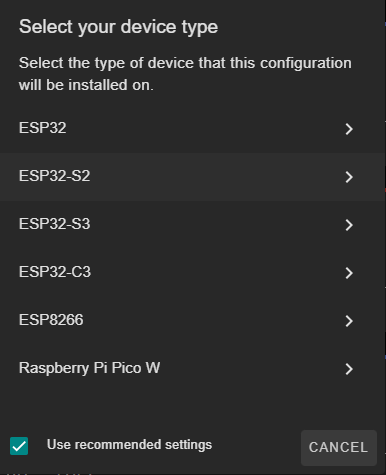
Open the recently created file and replace the content with the example configuration
smart-powermeter.yaml
Note
You might need to keep the encription keys OTA and API
  1substitutions:
  2  device_name: "smart-powermeter"
  3  friendly_name: "Smart Powermeter"
  4  project_name: "smart.powermeter"
  5  project_version: "2.0"
  6  ap_ssid: "Smart-Powermeter"
  7  ap_pwd: "smartpowermeter"
  8
  9esphome:
 10  name: "${device_name}"
 11  name_add_mac_suffix: true
 12  project:
 13    name: "${project_name}"
 14    version: "${project_version}"
 15
 16esp32:
 17  board: esp32-s2-saola-1
 18  framework:
 19    type: arduino
 20
 21# Enable logging
 22logger:
 23
 24# Enable Home Assistant API
 25api:
 26
 27# Enable Over The Air updates
 28ota:
 29  platform: esphome
 30
 31#Public location of this yaml file
 32dashboard_import:
 33  package_import_url: github://JGAguado/Smart_Powermeter/docs/source/files/configuration.yaml@V2R2
 34  import_full_config: true
 35
 36# Enable fallback hotspot (captive portal) in case wifi connection fails
 37captive_portal:
 38
 39
 40improv_serial:
 41
 42wifi:
 43  ap:
 44    ssid: "${ap_ssid}"
 45    password: "${ap_pwd}"
 46
 47time:
 48  - platform: homeassistant
 49    id: esptime
 50
 51sensor:
 52  - platform: adc
 53    pin: GPIO1
 54    id: Input_1
 55    attenuation: 12db
 56    update_interval: 1s
 57
 58  - platform: adc
 59    pin: GPIO2
 60    id: Input_2
 61    attenuation: 12db
 62    update_interval: 1s
 63
 64  - platform: adc
 65    pin: GPIO3
 66    id: Input_3
 67    attenuation: 12db
 68    update_interval: 1s
 69
 70  - platform: adc
 71    pin: GPIO4
 72    id: Input_4
 73    attenuation: 12db
 74    update_interval: 1s
 75
 76  - platform: adc
 77    pin: GPIO5
 78    id: Input_5
 79    attenuation: 12db
 80    update_interval: 1s
 81
 82  - platform: adc
 83    pin: GPIO6
 84    id: Input_6
 85    attenuation: 12db
 86    update_interval: 1s
 87
 88  - platform: ct_clamp
 89    sensor: Input_1
 90    id: Probe_1
 91    name: "Probe 1"
 92    sample_duration: 200ms
 93    update_interval: 1s
 94    filters:
 95      - calibrate_linear:
 96          - 0 -> 0
 97          - 0.042 -> 2.72
 98
 99  - platform: ct_clamp
100    sensor: Input_2
101    name: "Probe 2"
102    id: Probe_2
103    sample_duration: 200ms
104    update_interval: 1s
105    filters:
106      - calibrate_linear:
107          - 0 -> 0
108          - 0.033 -> 1.07
109
110  - platform: ct_clamp
111    sensor: Input_3
112    name: "Probe 3"
113    id: Probe_3
114    sample_duration: 200ms
115    update_interval: 1s
116    filters:
117      - calibrate_linear:
118          - 0 -> 0
119          - 0.022 -> 0.66
120
121  - platform: ct_clamp
122    sensor: Input_4
123    name: "Probe 4"
124    id: Probe_4
125    sample_duration: 200ms
126    update_interval: 1s
127    filters:
128      - calibrate_linear:
129          - 0 -> 0
130          - 0.022 -> 0.66
131
132  - platform: ct_clamp
133    sensor: Input_5
134    name: "Probe 5"
135    id: Probe_5
136    sample_duration: 200ms
137    update_interval: 1s
138    filters:
139      - calibrate_linear:
140          - 0 -> 0
141          - 0.022 -> 0.66
142
143  - platform: ct_clamp
144    sensor: Input_6
145    name: "Probe 6"
146    id: Probe_6
147    sample_duration: 200ms
148    update_interval: 1s
149    filters:
150      - calibrate_linear:
151          - 0 -> 0
152          - 0.022 -> 0.66
153
154  - platform: total_daily_energy
155    name: "Total Daily Power"
156    power_id: current_power
157    id: daily_power
158
159  - platform: template
160    id: current_power
161    name: "Measured Power"
162    lambda: return (id(Probe_1).state + id(Probe_2).state + id(Probe_3).state) * 230.0 / 1000; #Power = Current * Voltage
163    unit_of_measurement: 'kW'
164    update_interval: 5s
165
166  # WiFi Signal
167  - platform: wifi_signal
168    name: "WiFi Signal Sensor"
169    id: wifisignal
170    update_interval: 20s
171
172  # Homeassistant data
173  - platform: homeassistant
174    id: cost
175    entity_id: sensor.smart_powermeter_total_daily_power_cost
176
177font:
178  - file: "gfonts://Audiowide"
179    id: font_header
180    size: 15
181  - file: "gfonts://Audiowide"
182    id: font_gauge
183    size: 15
184  - file: "gfonts://Audiowide"
185    id: font_text
186    size: 15
187  - file: 'gfonts://Material+Symbols+Outlined'
188    id: font_icon
189    size: 18
190    glyphs:
191      - "\U0000f0b0" # wifi-strength-0
192      - "\U0000ebe4" # wifi-strength-1
193      - "\U0000ebd6" # wifi-strength-2
194      - "\U0000ebe1" # wifi-strength-3
195      - "\U0000e1d8" # wifi-strength-4
196
197spi:
198  clk_pin: GPIO12
199  mosi_pin: GPIO11  # Works on the e-paper
200
201image:
202  - file: https://smart-powermeter.readthedocs.io/en/v2r2/_images/Gauge.png
203    id: gauge
204    type: binary
205
206  - file: https://smart-powermeter.readthedocs.io/en/v2r2/_images/Gauge_1.png
207    id: gauge_1
208    type: binary
209
210  - file: mdi:home-lightning-bolt
211    id: power
212    type: grayscale
213    resize: 18x18
214
215  - file: mdi:cash-multiple
216    id: cash
217    type: grayscale
218    resize: 18x18
219
220  - file: mdi:currency-eur
221    id: euro
222    type: grayscale
223    resize: 18x18
224
225  - file: mdi:lightning-bolt
226    id: bolt
227    type: grayscale
228    resize: 22x22
229
230display:
231  - platform: waveshare_epaper
232    cs_pin: GPIO10
233    dc_pin: GPIO13
234    busy_pin: GPIO14
235    reset_pin: GPIO15
236    model: 2.90inv2
237    rotation: 270
238    update_interval: 1min
239    full_update_every: 1
240    pages:
241      - id: page1
242        lambda: |-
243          #define H_LEFT_MARGIN 4
244          #define H_RIGHT_MARGIN 280
245          #define H_CENTER 128
246          #define V_WEATHER 0
247          #define V_CLOCK 1
248          #define V_WIFI 30
249          #define V_VOLTAGE 60
250          #define V_BATTERY  90
251
252          // WiFi quality
253          // it.image(0, 0, id(background));
254
255          // Time
256          int x_head = 260;
257          int y_head = 2;
258          it.strftime(x_head, y_head, id(font_header), TextAlign::TOP_RIGHT,
259          "%H:%M", id(esptime).now());
260
261          // WiFi quality
262          if(id(wifisignal).has_state ()) {
263            if (id(wifisignal).state >= -50) {
264                // Excellent # mdi-wifi-strength-4
265                it.printf(x_head, y_head, id(font_icon), TextAlign::TOP_LEFT, "\U0000e1d8");
266            } else if (id(wifisignal).state  >= -60) {
267                //Good # mdi-wifi-strength-3
268                it.printf(x_head, y_head, id(font_icon), TextAlign::TOP_LEFT, "\U0000ebe1");
269            } else if (id(wifisignal).state  >= -67) {
270                //Fair # mdi-wifi-strength-2
271                it.printf(x_head, y_head, id(font_icon), TextAlign::TOP_LEFT, "\U0000ebd6");
272            } else if (id(wifisignal).state  >= -70) {
273                //Weak # mdi-wifi-strength-1
274                it.printf(x_head, y_head, id(font_icon), TextAlign::TOP_LEFT, "\U0000ebe4");
275            } else {
276                //Unlikely working mdi-wifi-strength-0
277                it.printf(x_head, y_head, id(font_icon), TextAlign::TOP_LEFT, "\U0000f0b0");
278            }
279          }
280
281          // Gauges
282          // General parameters
283          float pi = 3.141592653589793;
284          float alpha = 4.71238898038469; // Defined as the gauge angle in radians (270deg)
285          float beta = 2*pi - alpha;
286          int radius = 25;              // Radius of the gauge in pixels
287          int thick = 7;                // Size of the marker
288
289          // Probe 1
290          int min_range = 0;
291          int max_range = 10;
292          int xc = 40;
293          int yc = 33;
294
295          it.image(xc-radius, yc-radius, id(gauge));
296
297          float measured = id(Probe_1).state;
298
299          if (measured < min_range) {
300            measured = min_range;
301          }
302          if (measured > max_range) {
303            measured = max_range;
304          }
305
306          float val = (measured - min_range) / abs(max_range - min_range) * alpha;
307          int x0 = static_cast<int>(xc + radius * cos(pi / 2 + beta / 2 + val));
308          int y0 = static_cast<int>(yc + radius * sin(pi / 2 + beta / 2 + val));
309          int x1 = static_cast<int>(xc + (radius+thick) * cos(pi / 2 + beta / 2 + val + 0.1));
310          int y1 = static_cast<int>(yc + (radius+thick) * sin(pi / 2 + beta / 2 + val + 0.1));
311          int x2 = static_cast<int>(xc + (radius+thick) * cos(pi / 2 + beta / 2 + val - 0.1));
312          int y2 = static_cast<int>(yc + (radius+thick) * sin(pi / 2 + beta / 2 + val - 0.1));
313          it.line(x0, y0, x1, y1);
314          it.line(x1, y1, x2, y2);
315          it.line(x2, y2, x0, y0);
316
317
318          it.printf(xc, yc, id(font_gauge), TextAlign::CENTER,
319          "1");
320          it.printf(xc, yc + radius*0.75, id(font_gauge), TextAlign::TOP_CENTER,
321          "%.1fA", measured);
322
323          // Probe 2
324          min_range = 0;
325          max_range = 10;
326          xc = 100;
327          yc = 33;
328
329          it.image(xc-radius, yc-radius, id(gauge));
330
331
332          measured = id(Probe_2).state;
333
334          if (measured < min_range) {
335            measured = min_range;
336          }
337          if (measured > max_range) {
338            measured = max_range;
339          }
340
341          val = (measured - min_range) / abs(max_range - min_range) * alpha;
342          x0 = static_cast<int>(xc + radius * cos(pi / 2 + beta / 2 + val));
343          y0 = static_cast<int>(yc + radius * sin(pi / 2 + beta / 2 + val));
344          x1 = static_cast<int>(xc + (radius+thick) * cos(pi / 2 + beta / 2 + val + 0.1));
345          y1 = static_cast<int>(yc + (radius+thick) * sin(pi / 2 + beta / 2 + val + 0.1));
346          x2 = static_cast<int>(xc + (radius+thick) * cos(pi / 2 + beta / 2 + val - 0.1));
347          y2 = static_cast<int>(yc + (radius+thick) * sin(pi / 2 + beta / 2 + val - 0.1));
348          it.line(x0, y0, x1, y1);
349          it.line(x1, y1, x2, y2);
350          it.line(x2, y2, x0, y0);
351
352
353          it.printf(xc, yc, id(font_gauge), TextAlign::CENTER,
354          "2");
355          it.printf(xc, yc  + radius*0.75, id(font_gauge), TextAlign::TOP_CENTER,
356          "%.1fA", measured);
357
358          // Probe 3
359          min_range = 0;
360          max_range = 10;
361          xc = 160;
362          yc = 33;
363
364          it.image(xc-radius, yc-radius, id(gauge));
365
366
367          measured = id(Probe_3).state;
368
369          if (measured < min_range) {
370            measured = min_range;
371          }
372          if (measured > max_range) {
373            measured = max_range;
374          }
375
376          val = (measured - min_range) / abs(max_range - min_range) * alpha;
377          x0 = static_cast<int>(xc + radius * cos(pi / 2 + beta / 2 + val));
378          y0 = static_cast<int>(yc + radius * sin(pi / 2 + beta / 2 + val));
379          x1 = static_cast<int>(xc + (radius+thick) * cos(pi / 2 + beta / 2 + val + 0.1));
380          y1 = static_cast<int>(yc + (radius+thick) * sin(pi / 2 + beta / 2 + val + 0.1));
381          x2 = static_cast<int>(xc + (radius+thick) * cos(pi / 2 + beta / 2 + val - 0.1));
382          y2 = static_cast<int>(yc + (radius+thick) * sin(pi / 2 + beta / 2 + val - 0.1));
383          it.line(x0, y0, x1, y1);
384          it.line(x1, y1, x2, y2);
385          it.line(x2, y2, x0, y0);
386
387
388          it.printf(xc, yc, id(font_gauge), TextAlign::CENTER,
389          "3");
390          it.printf(xc, yc  + radius*0.75, id(font_gauge), TextAlign::TOP_CENTER,
391          "%.1fA", measured);
392
393          // Probe 4
394          min_range = 0;
395          max_range = 10;
396          xc = 40;
397          yc = 95;
398
399          it.image(xc-radius, yc-radius, id(gauge));
400
401
402          measured = id(Probe_4).state;
403
404
405          if (measured < min_range) {
406            measured = min_range;
407          }
408          if (measured > max_range) {
409            measured = max_range;
410          }
411
412          val = (measured - min_range) / abs(max_range - min_range) * alpha;
413          x0 = static_cast<int>(xc + radius * cos(pi / 2 + beta / 2 + val));
414          y0 = static_cast<int>(yc + radius * sin(pi / 2 + beta / 2 + val));
415          x1 = static_cast<int>(xc + (radius+thick) * cos(pi / 2 + beta / 2 + val + 0.1));
416          y1 = static_cast<int>(yc + (radius+thick) * sin(pi / 2 + beta / 2 + val + 0.1));
417          x2 = static_cast<int>(xc + (radius+thick) * cos(pi / 2 + beta / 2 + val - 0.1));
418          y2 = static_cast<int>(yc + (radius+thick) * sin(pi / 2 + beta / 2 + val - 0.1));
419          it.line(x0, y0, x1, y1);
420          it.line(x1, y1, x2, y2);
421          it.line(x2, y2, x0, y0);
422
423
424          it.printf(xc, yc, id(font_gauge), TextAlign::CENTER,
425          "4");
426          it.printf(xc, yc  + radius*0.75, id(font_gauge), TextAlign::TOP_CENTER,
427          "%.1fA", measured);
428
429          // Probe 5
430          min_range = 0;
431          max_range = 10;
432          xc = 100;
433          yc = 95;
434
435          it.image(xc-radius, yc-radius, id(gauge));
436
437
438          measured = id(Probe_5).state;
439
440
441          if (measured < min_range) {
442            measured = min_range;
443          }
444          if (measured > max_range) {
445            measured = max_range;
446          }
447
448          val = (measured - min_range) / abs(max_range - min_range) * alpha;
449          x0 = static_cast<int>(xc + radius * cos(pi / 2 + beta / 2 + val));
450          y0 = static_cast<int>(yc + radius * sin(pi / 2 + beta / 2 + val));
451          x1 = static_cast<int>(xc + (radius+thick) * cos(pi / 2 + beta / 2 + val + 0.1));
452          y1 = static_cast<int>(yc + (radius+thick) * sin(pi / 2 + beta / 2 + val + 0.1));
453          x2 = static_cast<int>(xc + (radius+thick) * cos(pi / 2 + beta / 2 + val - 0.1));
454          y2 = static_cast<int>(yc + (radius+thick) * sin(pi / 2 + beta / 2 + val - 0.1));
455          it.line(x0, y0, x1, y1);
456          it.line(x1, y1, x2, y2);
457          it.line(x2, y2, x0, y0);
458
459
460          it.printf(xc, yc, id(font_gauge), TextAlign::CENTER,
461          "5");
462          it.printf(xc, yc  + radius*0.75, id(font_gauge), TextAlign::TOP_CENTER,
463          "%.1fA", measured);
464
465          // Probe 6
466          min_range = 0;
467          max_range = 10;
468          xc = 160;
469          yc = 95;
470
471          it.image(xc-radius, yc-radius, id(gauge));
472
473
474          measured = id(Probe_6).state;
475
476
477          if (measured < min_range) {
478            measured = min_range;
479          }
480          if (measured > max_range) {
481            measured = max_range;
482          }
483
484          val = (measured - min_range) / abs(max_range - min_range) * alpha;
485          x0 = static_cast<int>(xc + radius * cos(pi / 2 + beta / 2 + val));
486          y0 = static_cast<int>(yc + radius * sin(pi / 2 + beta / 2 + val));
487          x1 = static_cast<int>(xc + (radius+thick) * cos(pi / 2 + beta / 2 + val + 0.1));
488          y1 = static_cast<int>(yc + (radius+thick) * sin(pi / 2 + beta / 2 + val + 0.1));
489          x2 = static_cast<int>(xc + (radius+thick) * cos(pi / 2 + beta / 2 + val - 0.1));
490          y2 = static_cast<int>(yc + (radius+thick) * sin(pi / 2 + beta / 2 + val - 0.1));
491          it.line(x0, y0, x1, y1);
492          it.line(x1, y1, x2, y2);
493          it.line(x2, y2, x0, y0);
494
495
496          it.printf(xc, yc, id(font_gauge), TextAlign::CENTER,
497          "6");
498          it.printf(xc, yc  + radius*0.75, id(font_gauge), TextAlign::TOP_CENTER,
499          "%.1fA", measured);
500
501
502          // Total parameters
503          // Power gauge
504          alpha = pi; // Defined as the gauge angle in radians (270deg)
505          beta = 2*pi - alpha;
506          radius = 40;              // Radius of the gauge in pixels
507          thick = 7;
508
509          min_range = 0;
510          max_range = 5;
511          xc = 245;
512          yc = 65;
513
514          it.image(xc-radius, yc-radius, id(gauge_1));
515
516          measured = id(current_power).state;
517
518          if (measured < min_range) {
519            measured = min_range;
520          }
521          if (measured > max_range) {
522            measured = max_range;
523          }
524
525          val = (measured - min_range) / abs(max_range - min_range) * alpha;
526          x0 = static_cast<int>(xc + radius * cos(pi / 2 + beta / 2 + val));
527          y0 = static_cast<int>(yc + radius * sin(pi / 2 + beta / 2 + val));
528          x1 = static_cast<int>(xc + (radius+thick) * cos(pi / 2 + beta / 2 + val + 0.1));
529          y1 = static_cast<int>(yc + (radius+thick) * sin(pi / 2 + beta / 2 + val + 0.1));
530          x2 = static_cast<int>(xc + (radius+thick) * cos(pi / 2 + beta / 2 + val - 0.1));
531          y2 = static_cast<int>(yc + (radius+thick) * sin(pi / 2 + beta / 2 + val - 0.1));
532          it.line(x0, y0, x1, y1);
533          it.line(x1, y1, x2, y2);
534          it.line(x2, y2, x0, y0);
535
536
537          it.image(xc-11, yc-22, id(bolt));
538
539          it.printf(xc, yc + radius/2, id(font_gauge), TextAlign::BOTTOM_CENTER,
540          "%.1fkW", measured);
541          // it.printf(xc, yc + radius/2, id(font_gauge), TextAlign::TOP_CENTER,
542          // "kW");
543
544          // Derivated parameters:
545          measured = id(daily_power).state;
546          it.printf(290, 85, id(font_gauge), TextAlign::TOP_RIGHT,
547          "%.0fkWh", measured);
548          it.image(200, 85, id(power));
549
550          measured = id(cost).state;
551          it.image(200, 105, id(cash));
552
553          it.printf(275, 105, id(font_gauge), TextAlign::TOP_RIGHT,
554          "%.2f", measured);
555          it.image(275, 105, id(euro));
Note
Gauge.png and Gauge.png are some customized gauges to be plotted as part of the background. You can download them to your local path, or just invoke the url as in the .yaml example.


Click on install, make sure that the the board is connected via the USB-C (and that it is into flashing mode, see up in this guide) to the device running the Home Assistant (in my case a Raspberry Pi) before selecting the mode of installation.

Select the Serial port and let it run, it might take some minutes.
Once it’s done, you will have to exit the flashing mode: press the Reset pushbutton once.
Now, your ESPHome-based Smart Powermeter should be ready to log data and stream it to your Home Assistant. Note that the current configuration is just an example and you can customize it at your will, including the calibration.
Tip
A very easy way to upload and copy files (code or even images) into your ESPHome folder hosted in your HA instance is with the help of the Visual Studio Code integration for HA. This way you can just drag and drop the files over the folder on the Home Assistant’s Visual Studio Code navigation panel on your left.
Flash Tools
If you want to deploy an ESPHome already compiled .bin image, you can use Espressif’s official Flash Download Tools to upload it into your Smart Powermeter.
As an example (and test) you can use this smart-powermeter-offline.bin image with the address 0x0, make sure DoNotChgBin is checked:

Note
Make sure that the checkbox close to the filepath is also checked!
Arduino
If you are still interested in programming directly with the Arduino IDE, the procedure is no different than with any other ESP32 devices:
Open the Arduino IDE and go to File -> Preferences option.
Add to the Additional Boards Manager URSLs the url:
https://dl.espressif.com/dl/package_esp32_index.json
Close the preferences and open in the menu Tools -> Board -> Boards Manager.
Search for esp32 and install it. This might take some time.
Now you can select the board ESP32S2 Dev Module as the target board. Leave the rest of parameters by default.
Select the correct port and remember to enter the board into flashing mode before uploading the sketch.